Access your server using the web console
Last updated on
This guide will show you how to use the web console in the STACKIT Portal for connecting to your server.
Keyboard shortcuts
Section titled “Keyboard shortcuts”There are a few predefined keyboard shortcuts for the web console that simplify its use and make your work more efficient. Here’s a list with the most used keyboard shortcuts including examples:
For some special characters, the Caps lock key must be pressed instead of the Shift key (Caps lock can be pressed either at the same time or before).
- Example: Instead of “Shift” + “7” for ”/” you can press “Caps lock” + “7” in the web console (incl. another “Caps lock” afterwards to deactivate)
- Example: Instead of “Shift” + “0” for ”=” you can press “Caps lock” + “0” in the web console (incl. another “Caps lock” afterwards to deactivate)
- Example: Instead of “Alt gr” + “Q” for ”@” you can press “Caps lock” + “Shift” “2” in the web console (incl. another “Caps lock” again afterwards to deactivate)
- Example: Instead of ”#” you can press “Caps lock” + “Shift” “3” in the web console (incl. another “Caps lock” afterwards to deactivate)
Access a server using the web console
Section titled “Access a server using the web console”The web console is an emulated console access to the respective virtual machine (VM). Use it to perform emergency actions via the console in the event of an error in the SSH configuration. The web console can be used as follows:
Assign user credentials for the VM
Section titled “Assign user credentials for the VM”In order to use the web console, generate appropriate credentials during server installation (or directly on the server): Create a new Linux instance
Note the information on password complexity and on avoiding certain characters.
Open web console
Section titled “Open web console”Use the STACKIT Portal to list all servers in your project and select the appropriate one. You can select the web console in the context menu of the server. You can reach it via the function menu for the respective VM.
The web console then opens and can be used to log into the server. As login data, please use the username and password information provided during the server installation (see Create a new STACKIT Server instance).
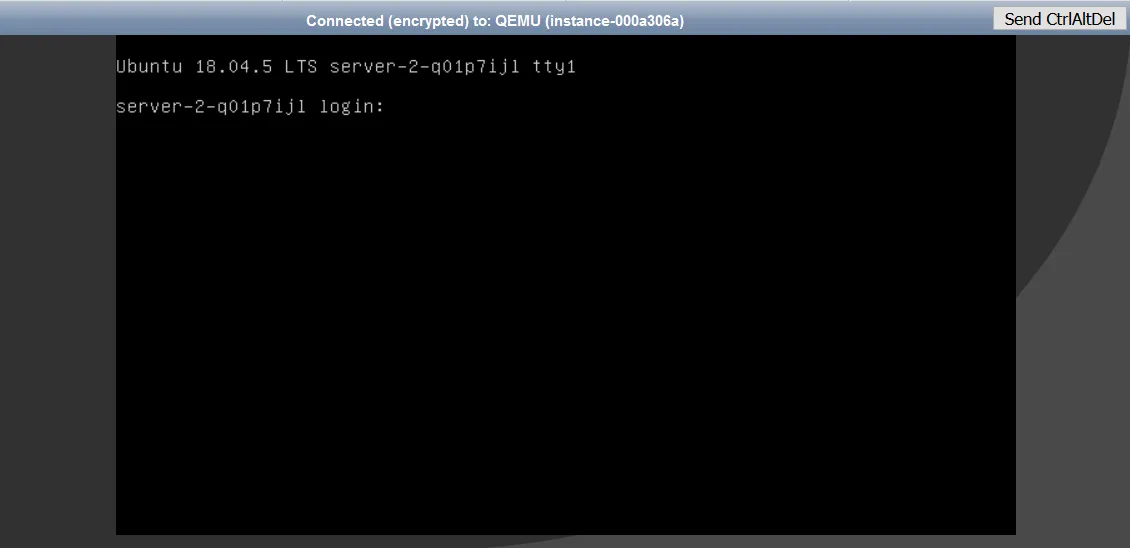
After you finish your work, log off from the server for security reasons, to close the terminal session. For Linux / Unix systems, you can use the “exit” command.
To get a link for web console via API:
Section titled “To get a link for web console via API:”GET https://iaas.api.stackit.cloud/v2/projects/{projectId}/regions/{region}/servers/{serverId}/consoleAPI Reference: GetServerConsole.
To get a link for web console via CLI:
Section titled “To get a link for web console via CLI:”stackit server console SERVER_ID [flags]Command line examples:
Section titled “Command line examples:”Get a URL for the server remote console with server ID "xxx"$ stackit server console xxx
Get a URL for the server remote console with server ID "xxx" in JSON format$ stackit server console xxx --output-format jsonCLI Refference: GetServerConsoleCLI.